Kindred

Lesson Builder · AI lessons & worksheets

Decks, worksheets and answer keys, drafted in minutes.

Pick your subject, year level and the reading level to write at. Lesson Builder drafts a slide deck, a matching worksheet and a separate answer key — aligned to the curriculum, illustrated for the subject, with the diagrams drawn for you. You edit every word, and it's yours.
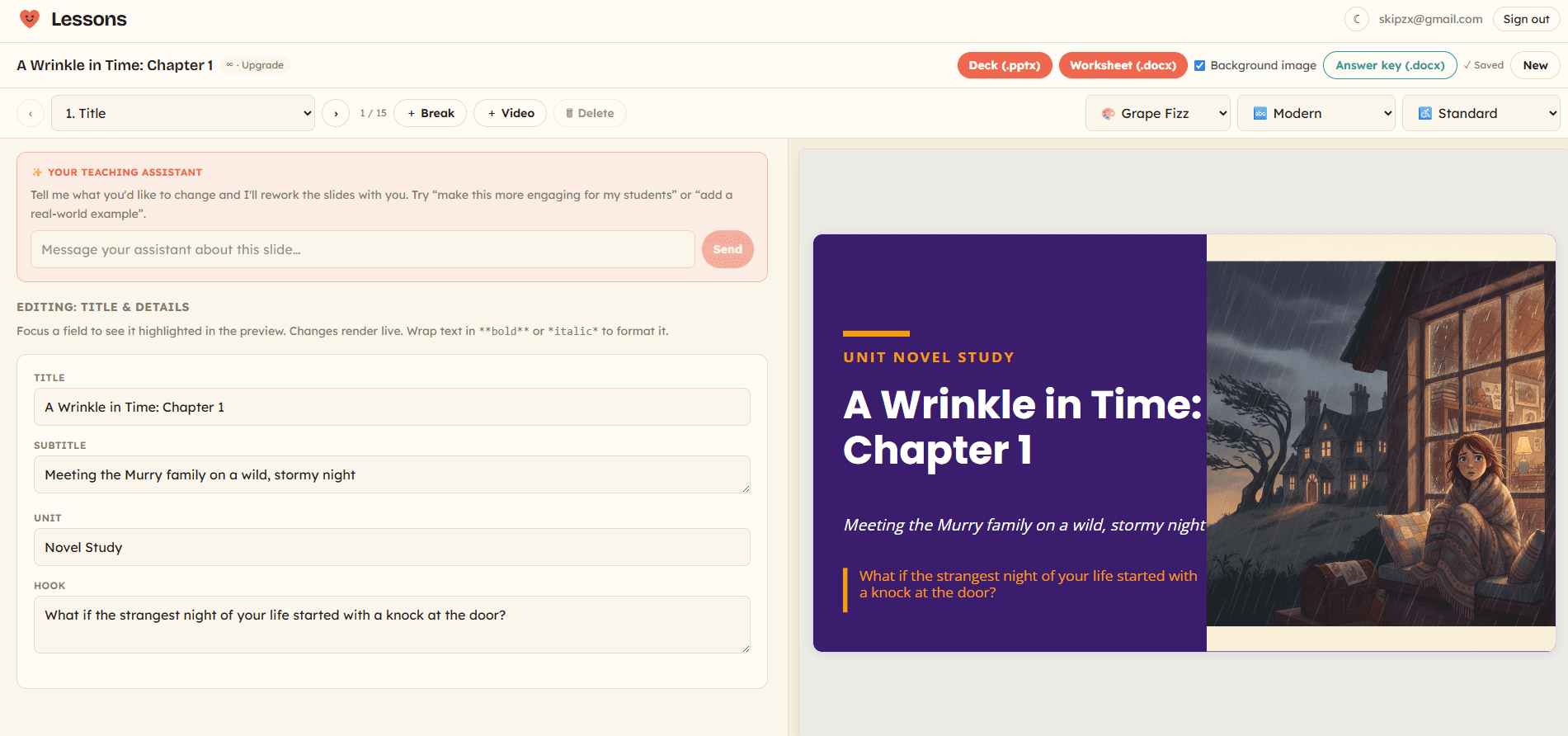
The Lesson Builder editor: a teaching-assistant chat and editable title fields on the left, a live preview of a purple ‘A Wrinkle in Time’ title slide with a stormy illustration on the right.
The editor

See it

The real thing, not a mock-up.

Draft a lesson, then shape it slide by slide with a teaching assistant that edits alongside you. Swap a slide's layout, restyle the whole deck's palette and fonts, or apply an accessibility mode — every change renders live before you download a thing.
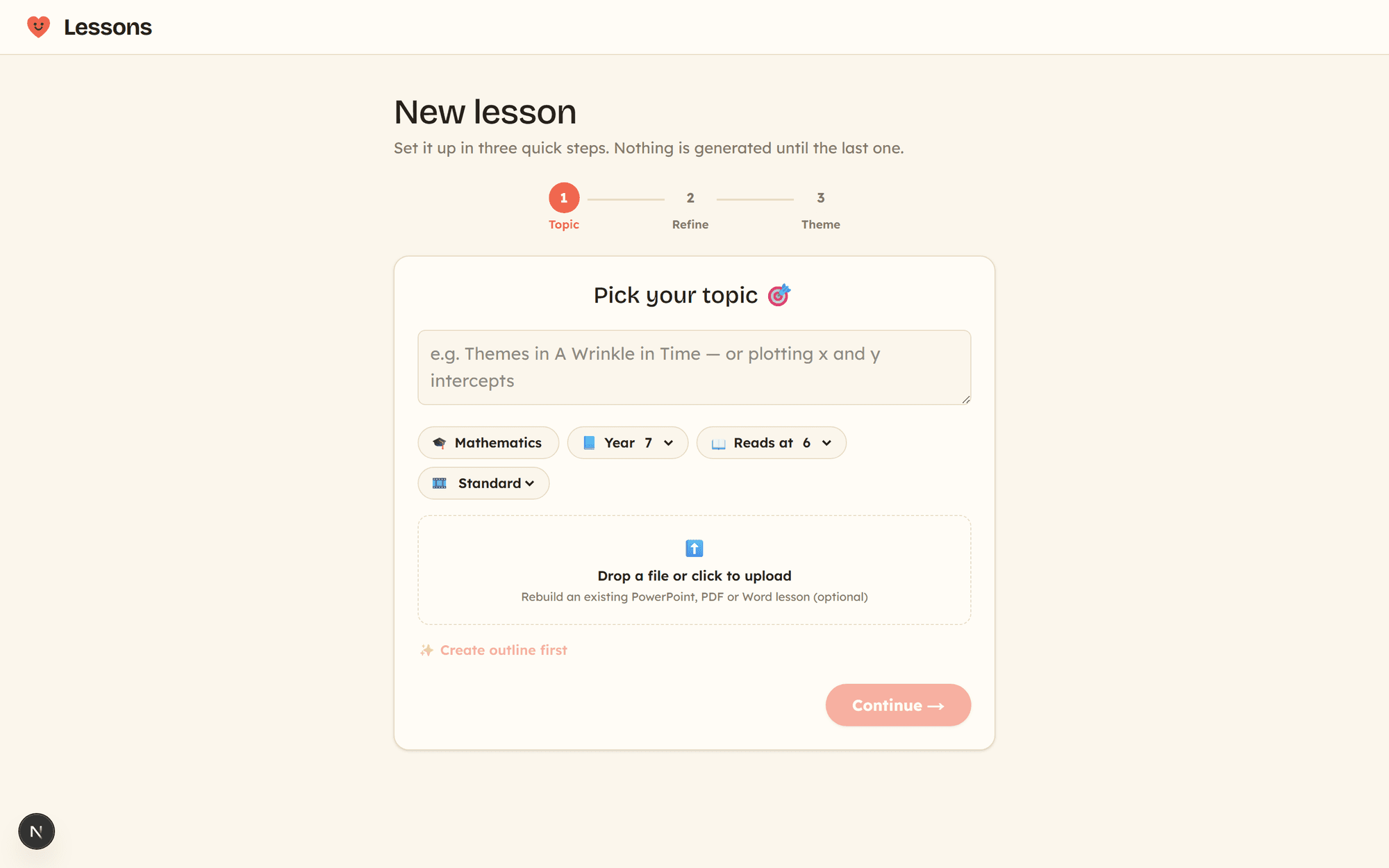
The New lesson screen: a topic box, subject, year level and reading level, and a rebuild-from-a-file uploader.
Set it up in three steps — topic, year level, reading level. Nothing generates until the last one.
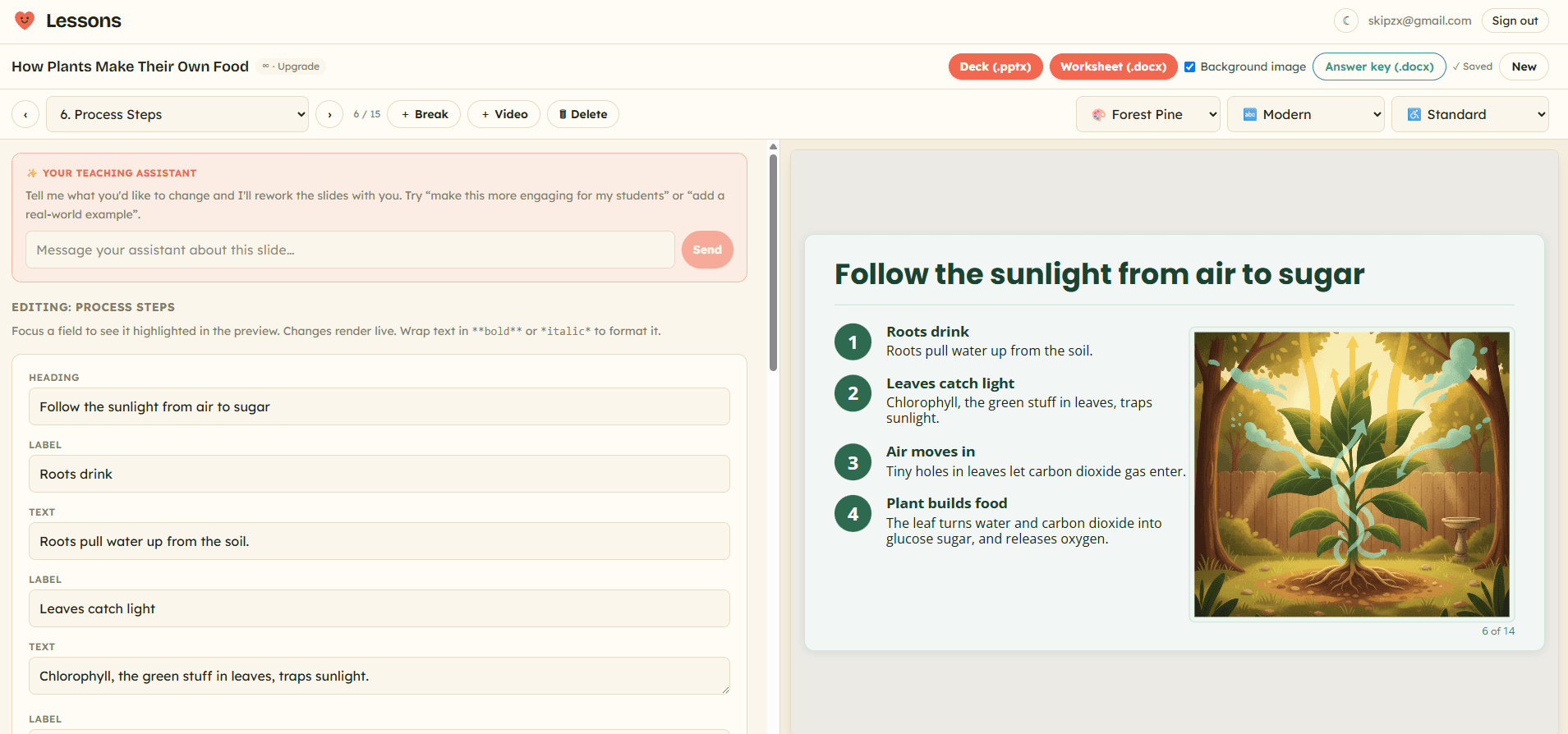
The Lesson Builder editor: editable step fields on the left and a live preview of an illustrated science slide — a photosynthesis process, numbered one to four beside a drawn plant.
Edit any field on the left and the illustrated slide re-renders live as you type.
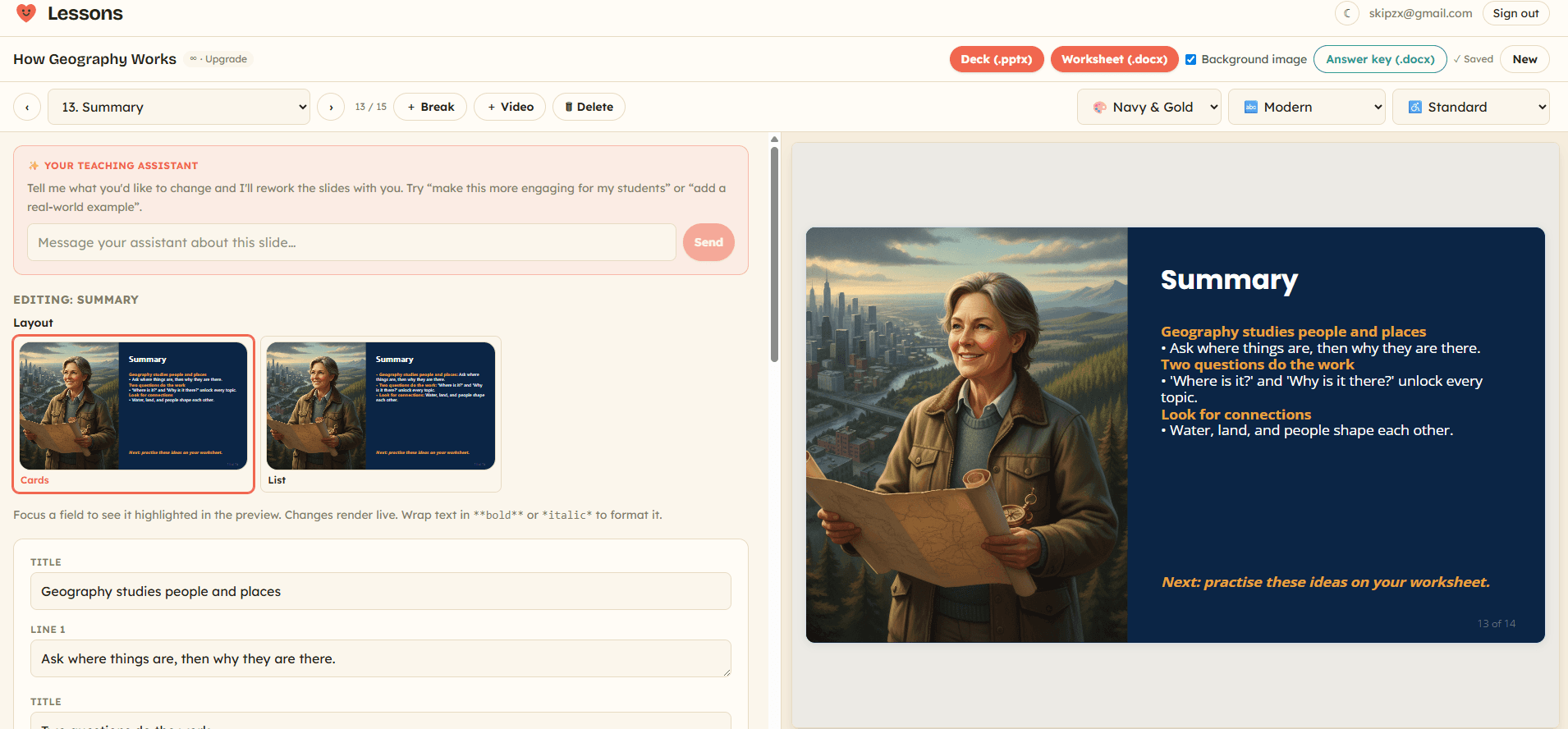
Choosing a slide layout in the editor — Cards or List — beside a live preview of a navy-and-gold summary slide with an explorer illustration.
Swap a slide's layout or restyle the whole deck — a different look renders live.

Three files, one pass

Everything you need to teach the lesson, generated together.

Ask for a lesson and you get the deck, the worksheet and the answer key in one go, so they agree with each other out of the box.

01

The slide deck

A full deck you teach straight from: title, concepts, worked examples and your-turn tasks. Illustrations and diagrams are drawn into the slides for you, chosen for the subject — not pulled from clip-art. Exports to editable .pptx.

02

The worksheet

A student-facing worksheet aligned to the same lesson, pitched at the reading level you chose, editable everywhere. Exports to .docx.

03

The answer key

A separate teacher answer key for the worksheet, so you can mark or model answers without building one from scratch. Exports to .docx.

Illustrated, not decorated

Art that teaches, not clip-art.

Every image is chosen for what you're teaching, aligned to the Victorian F–10 learning areas. English and the humanities get warm, interpretive illustration that carries the theme. Science gets an accurate diagram — a labelled leaf cross-section, not a cartoon. Maths stays clean so the working leads. A picture should teach, not decorate — so text-heavy slides are left clean on purpose.
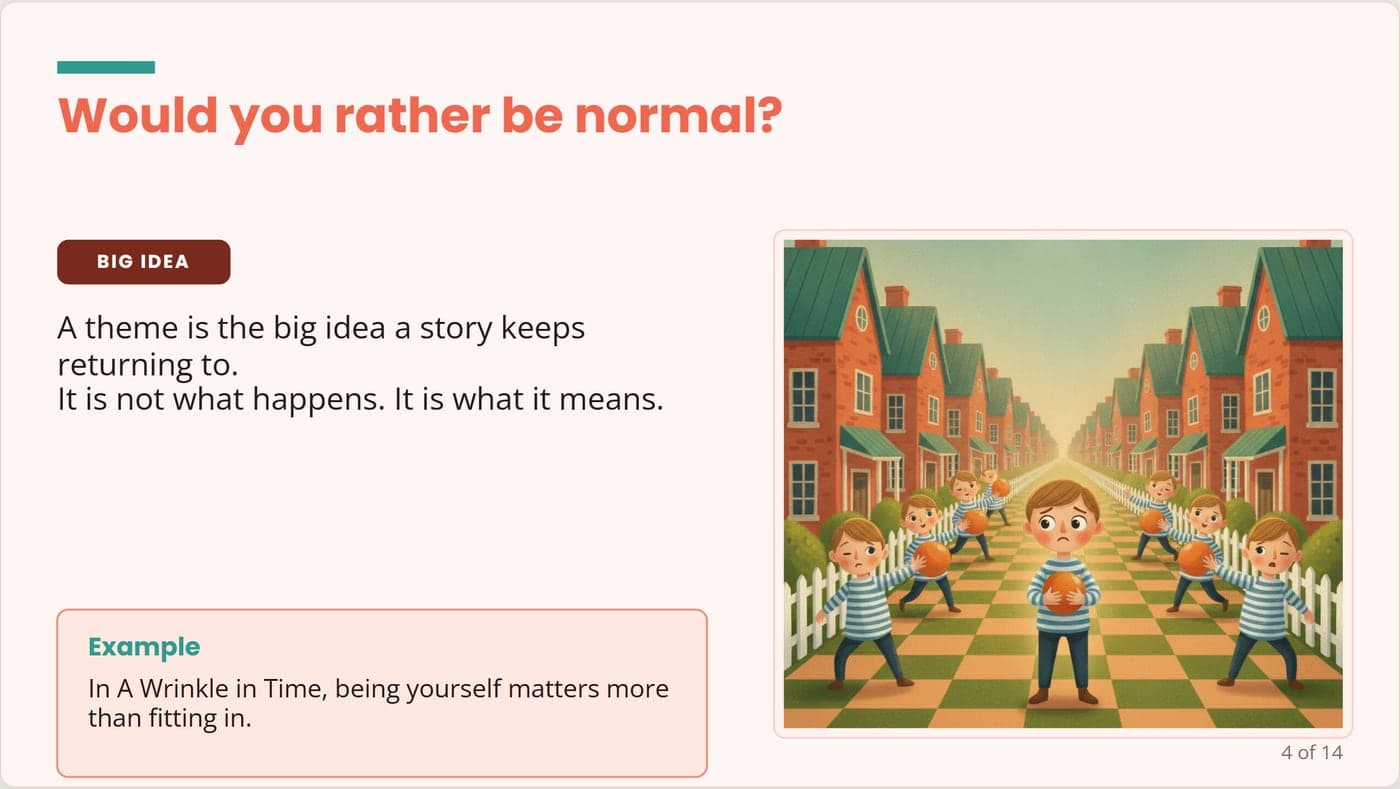
An English concept slide: 'A theme is the big idea a story keeps returning to', beside an illustration of one child standing still in a street of children all mid-throw.
English — an interpretive illustration that carries the idea, not a stock photo.
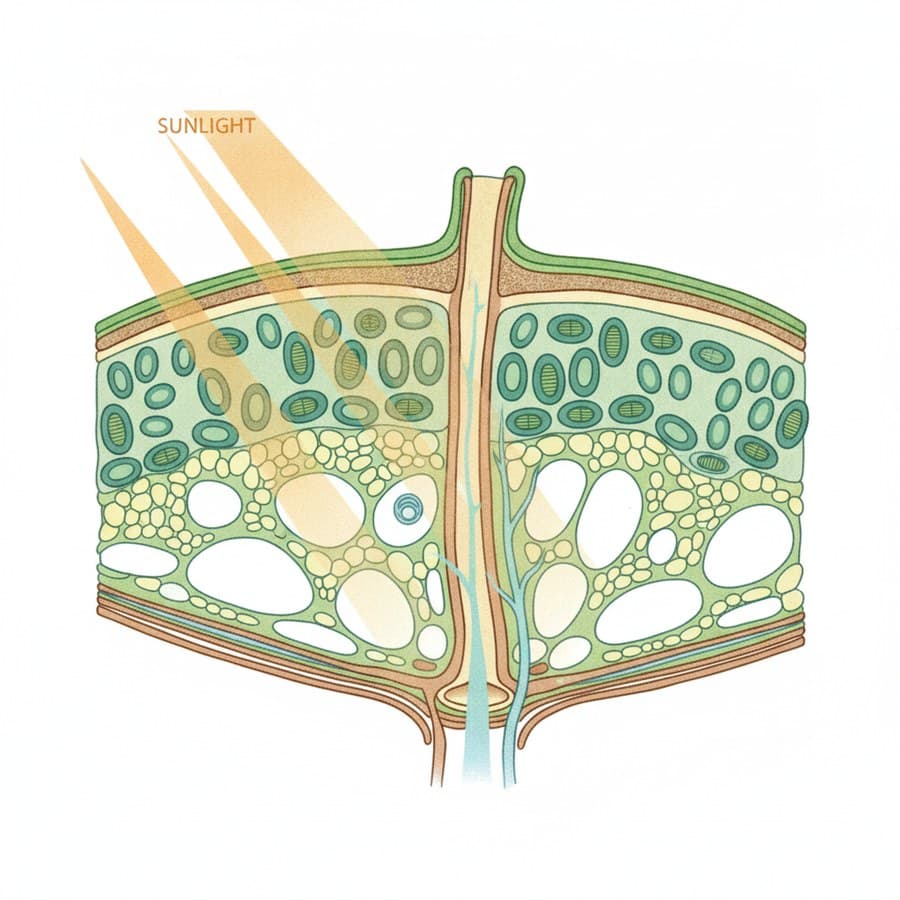
A labelled cross-section of a leaf showing the cuticle, palisade and spongy layers, chloroplasts and a vein, with sunlight angled in.
Science — an accurate, labelled diagram, drawn for the concept you're teaching.

One deck, title to summary — the art stays on-brand the whole way through.
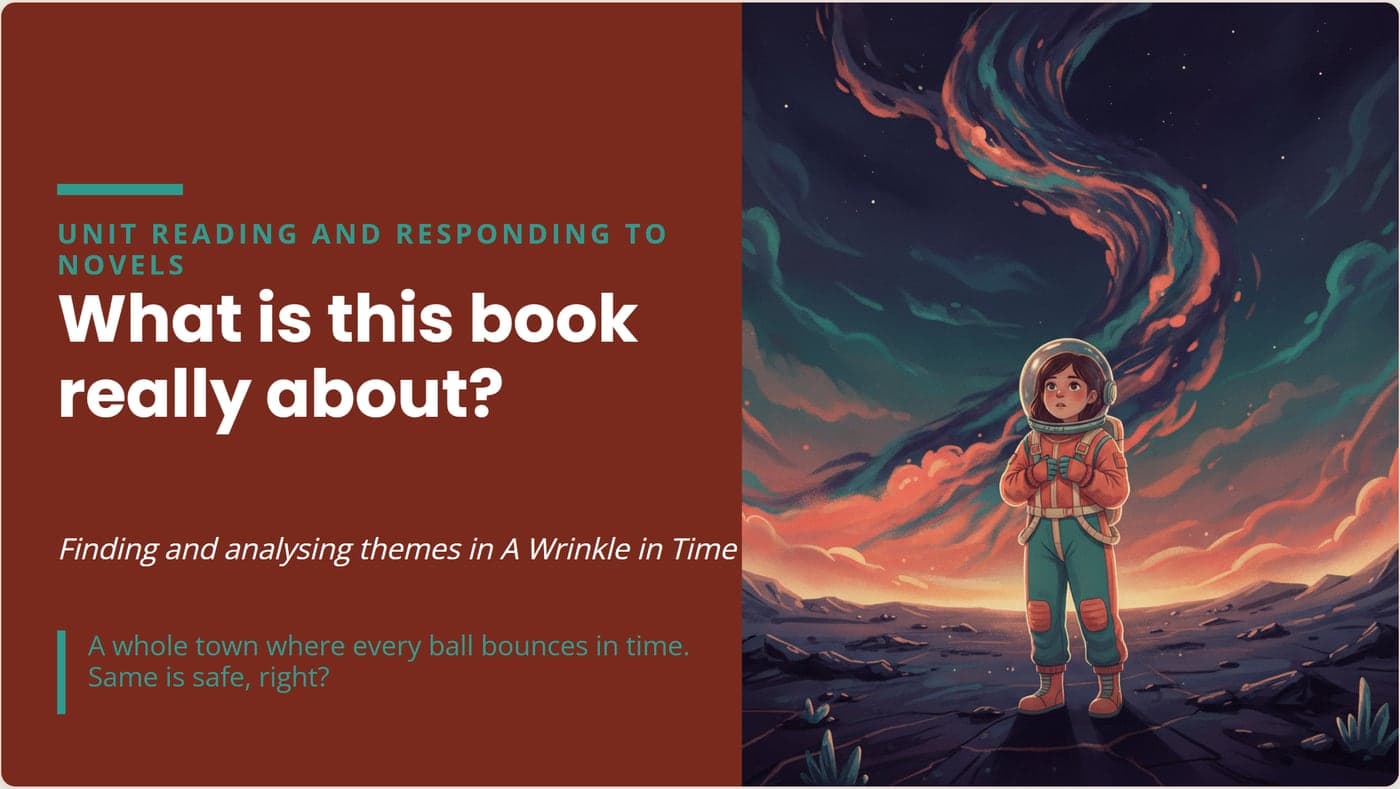
An English title slide: an astronaut child under a swirling galaxy, introducing a novel study.
English — a warm, interpretive scene carries the theme.
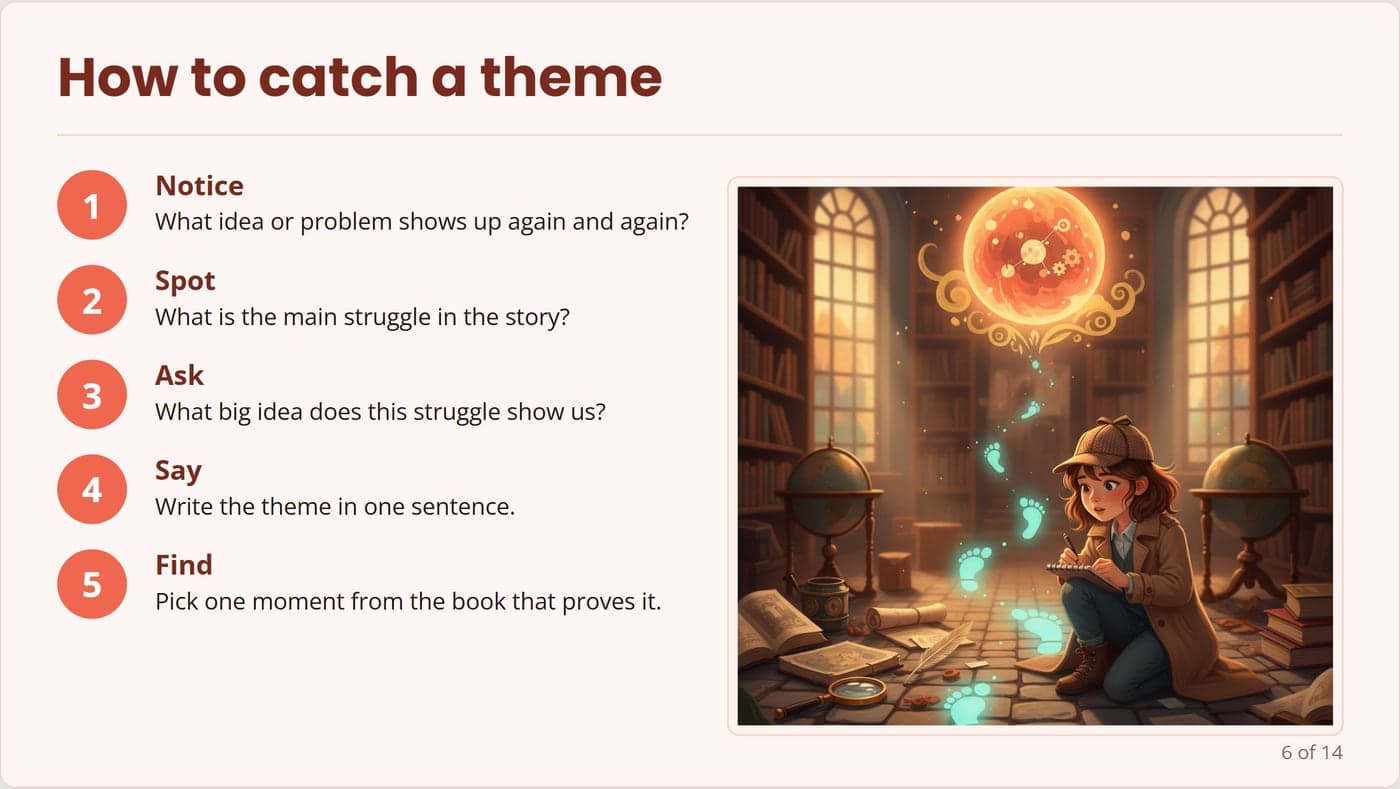
A how-to slide with five numbered steps beside an illustrated young detective following glowing footprints.
A method slide, illustrated so the steps stick.
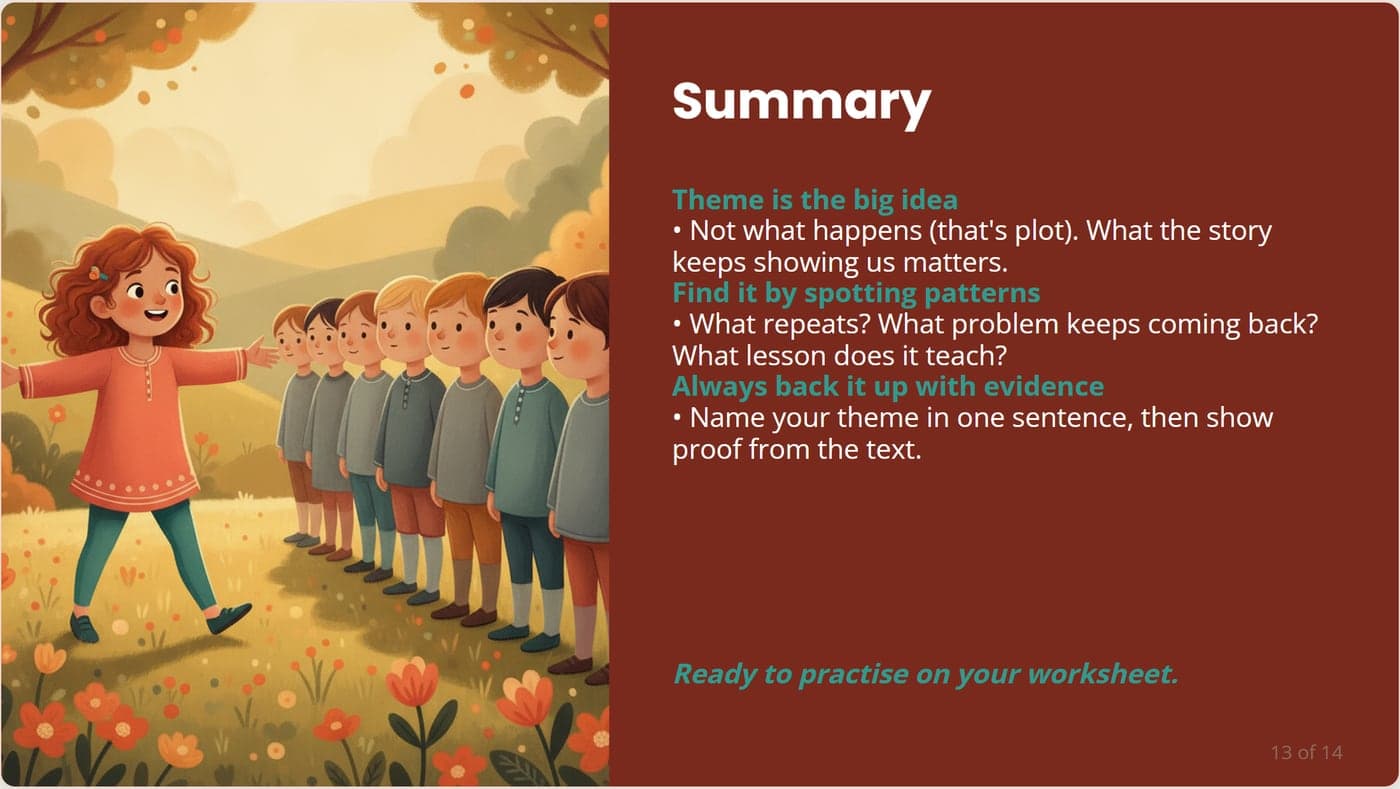
A summary slide recapping the theme beside an illustration of a child stepping out from a line of others.
A closing slide that recaps and points to the worksheet.

Why teachers reach for it

Built for the Australian classroom, and for your time.

Write at any reading level

Reading level is a separate setting from the year level. Teach Year 7 content pitched at a Year 4 reading level, so the students who need it can actually access the lesson.

Illustrated for the subject

On-brand artwork is generated for the specific lesson and chosen per slide — interpretive scenes for English, accurate diagrams for Science and Maths — not a stock image that nearly fits.

Curriculum-aligned

Built against the Victorian Curriculum (VCAA F to 10) and the Australian Curriculum. Paste the outcome codes and it plans from them, not from a generic template.

Rebuild a lesson you already have

Upload a PowerPoint, PDF or Word file and Lesson Builder rebuilds it at the reading level you choose. Your old deck, made accessible in a minute.

No student data to plan

A lesson needs the outcome, not a single student name. There's nothing identifying to hand over. Privacy by construction.

Yours to edit and own

Every draft is a starting point. Change any word with a teaching assistant beside you, swap the look any time with no regenerating, and the final is yours.

FAQ

Lesson Builder, answered

Can I set a different reading level to the year level?
Yes, and it's the point. Reading level is a separate control from the class year level, so you can teach year-level content pitched lower (or higher) for the students in front of you. The worksheet and answer key follow the same level.
Does it just put stock images on slides?
No. Images are generated for the specific lesson and chosen per subject — interpretive art for English and the humanities, accurate diagrams for Science and Maths — and text-heavy slides are left clean on purpose. An image should teach, not decorate.
Can I turn a lesson I already have into this?
Yes. Upload an existing PowerPoint, PDF or Word file and Lesson Builder reads the text and rebuilds it at your chosen reading level, with a matching worksheet and answer key. Describe any changes and it applies them too.
Which curriculum does it use?
It's built for the Australian classroom — the Victorian Curriculum (VCAA F to 10) and the Australian Curriculum. Give it the outcome you're teaching, or paste the curriculum codes, and it plans from there.
What files do I get?
Three, generated together so they agree: a slide deck (.pptx), a student worksheet (.docx) and a separate teacher answer key (.docx). Everything is editable in your own tools.
Do I have to keep the AI's wording?
No. Every draft is a starting point. Edit any field and the slide re-renders live, ask the built-in teaching assistant to rework a slide, or restyle the whole deck — no re-prompting, no regenerating. You keep what's yours, change what isn't, and the final is yours.
Does it need any student information?
No. Planning a lesson needs the curriculum outcome, not student names, so there's nothing identifying to hand over. That's the whole point of the privacy-first design.

Plan tomorrow's lesson in the time it takes to make a coffee.

Lesson Builder is live. Tell me what you teach and start planning tonight.